Getting into the app
Two ways in: with your email, or with the link your host sends you. And where the door has a keypad, they pass the code on to you. All of it in any browser, on every platform — no passwords and nothing to install.
With your email, in three steps
- 1
Type your email
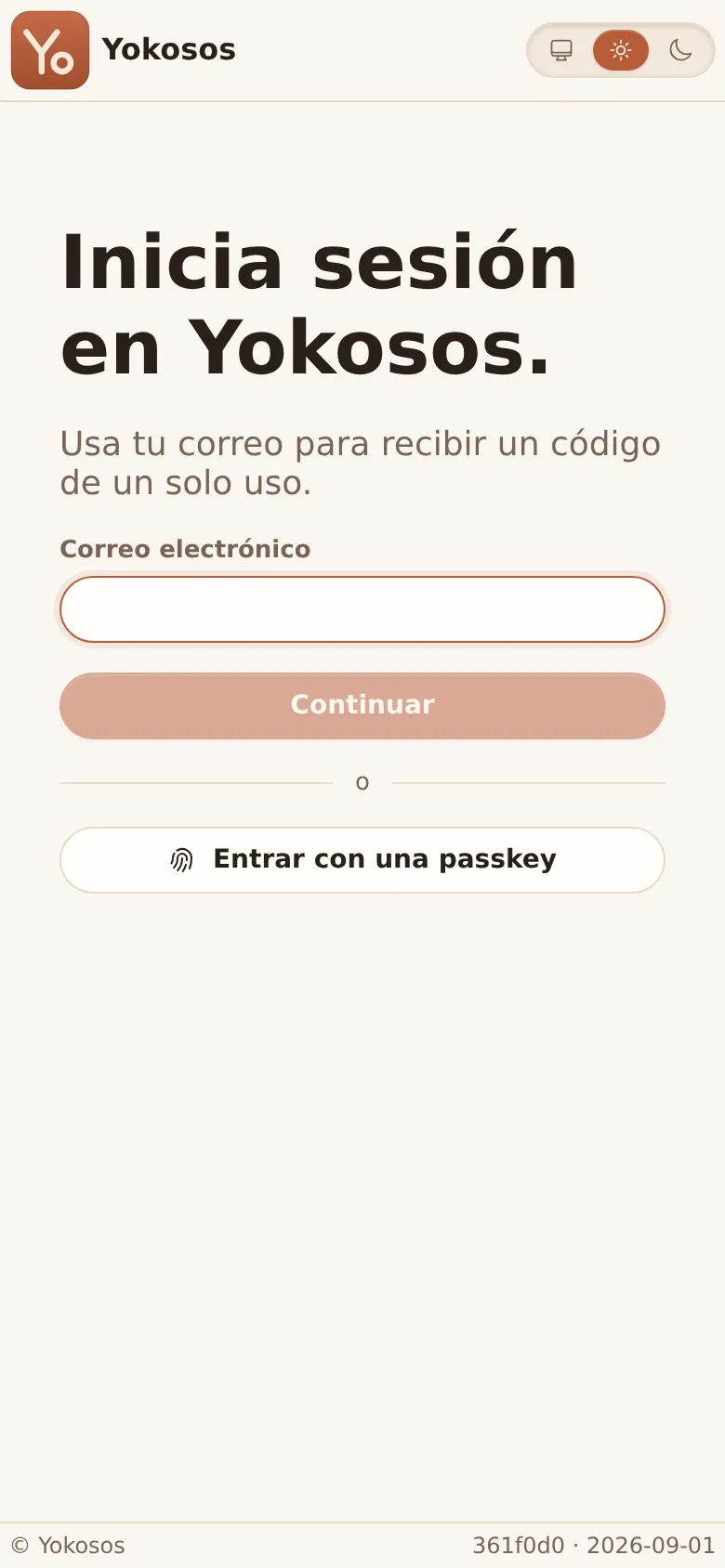
The sign-in screen Use the same email you used for your booking — only that email will work. There is nothing to register and no password to create.
- 2
Enter the code
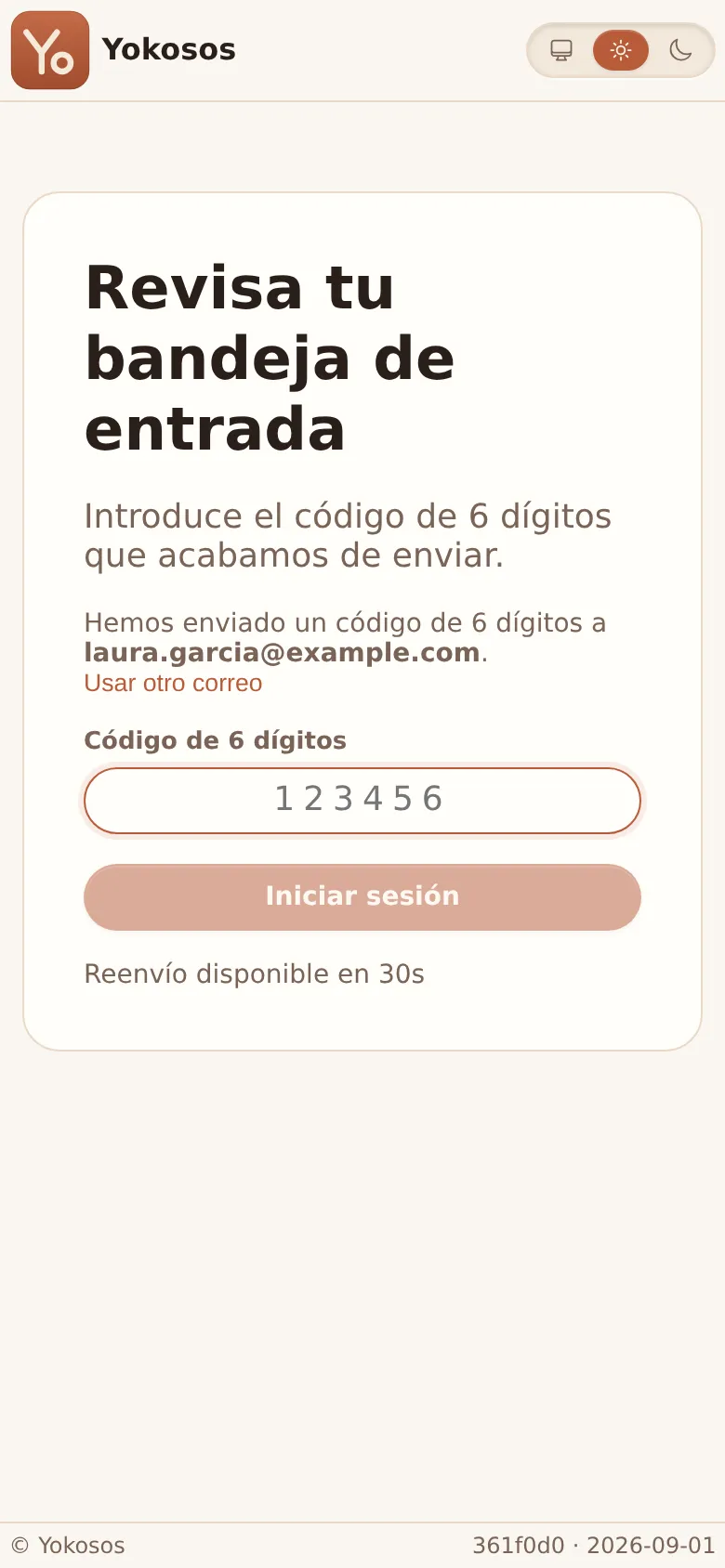
One-time code, sent by email We email you a 6-digit code. Type it in and tap Sign in.
- 3
You're in
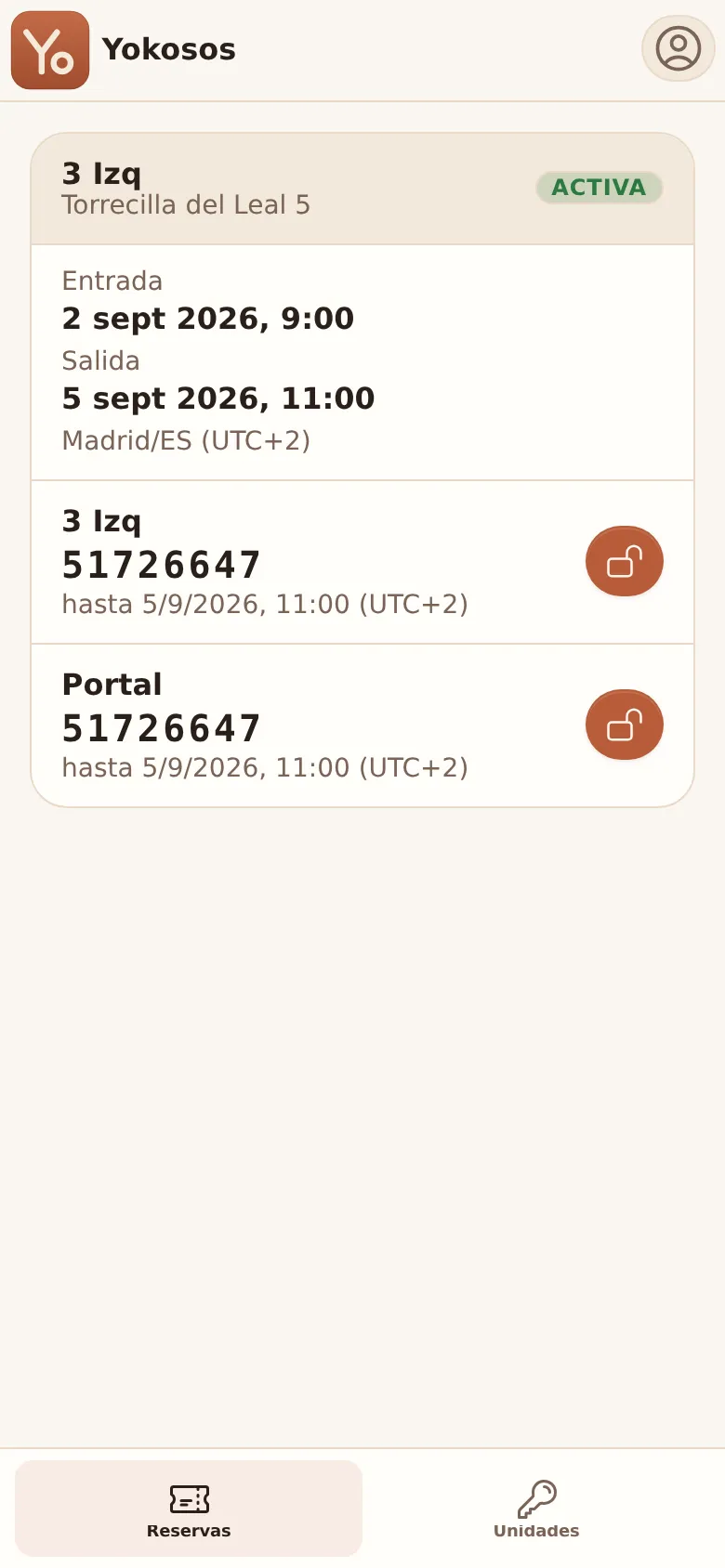
Your stay, with doors and codes The app opens straight onto your stay: dates, doors and access codes.
Your session is remembered by the browser, so the next days won't ask for a code again. And if you add a passkey from My account (fingerprint / Face ID), next time you get in with Sign in with a passkey on this same screen — no email, no code.
Getting in with a link
When the booking was made without leaving an email.
- Your host sends you an access link wherever you already talk: the booking platform’s chat, a message, a slip of paper at the desk.
- Open it and you are in: no email, no password and no one-time code.
- It works from the moment they send it — so you can look the booking up before you arrive — and keeps working for the whole stay, until a day after check-out.
- It works on more than one device: open it on your phone and later, if you like, on a laptop.
- Keep the message it came in: that is how you get back in.
- If you lose it, or think someone else may have seen it, ask your host for another. The new link cancels the old one.
The link says who you are, but it does not decide which doors you open or when: your booking’s dates do that, exactly as for any other guest.
Your stay and your doors
Each card is one stay. At the top, the unit and the building, with the booking's status (UPCOMING before check-in, ACTIVE during the stay); below it, check-in and check-out. Then come your doors — usually two:
- Your apartment's door carries your unit's name (e.g. 3 Izq).
- Portal — the building's front door.
- Each door shows its own numeric code underneath. In many buildings it is the same number for both; in others each door has its own — go by the one printed under each name. It is valid until the check-out time shown beside the code ("until …"); after that it simply expires — nothing to return.
- The round padlock button appears while the stay is active and unlocks the door from your phone.
Two ways to open
With the code, on the keypad
- Key into the door's keypad the code shown under its name in the app — usually 7 or 8 digits depending on the door. This is the everyday way in: it always works, even with a dead phone or no signal.
From your phone
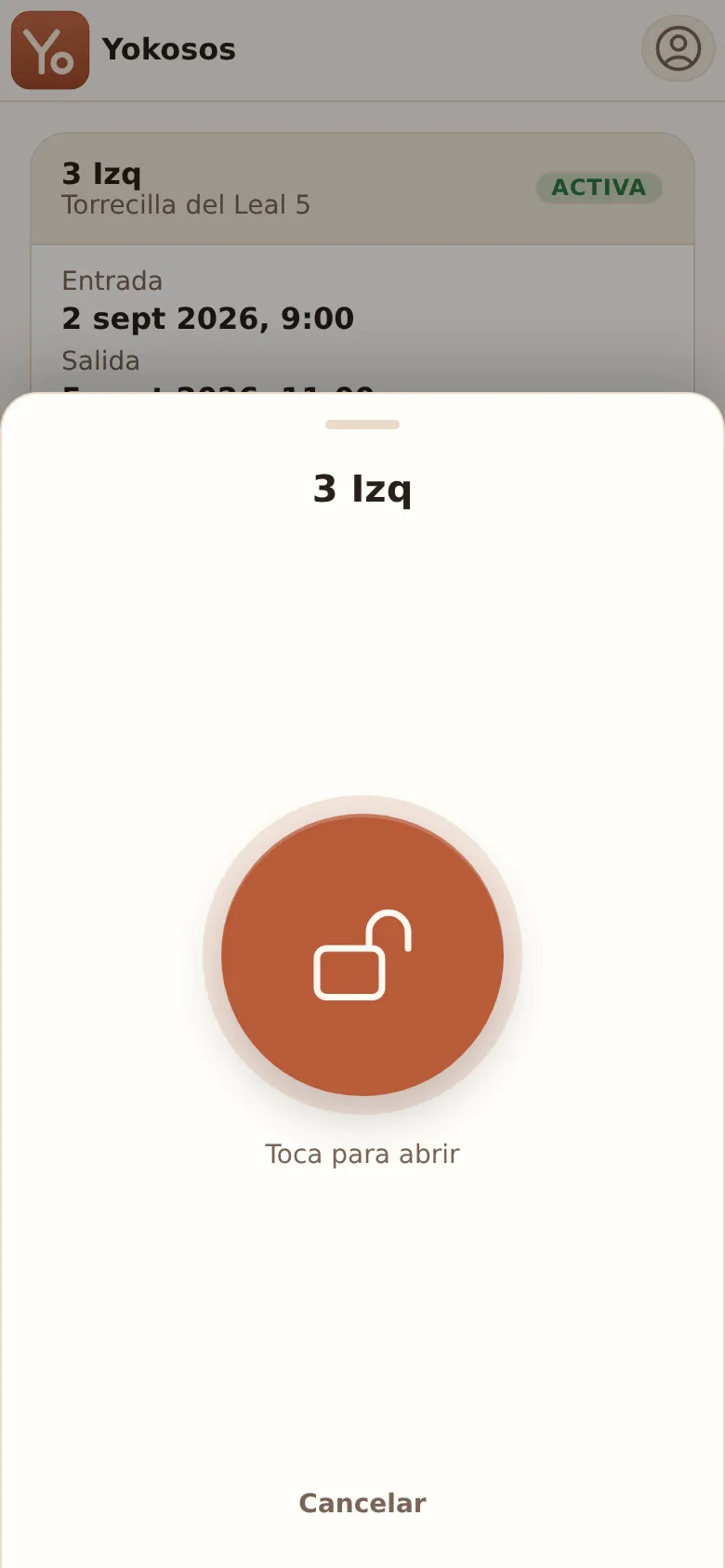
- Tap the padlock button next to the door. A confirmation sheet slides up: tap the big button and the door unlocks. The confirmation step prevents accidental opens while the phone is in your hand.
My account
- Top-right menu → My account: display name, country and language, passkeys (fingerprint / Face ID) and open sessions.
Something not working? Message or call your host — they can resend your code, check your lock and open the door for you remotely.
Put it on your home screen
It lives in the browser, but it can sit on your home screen and open like any other app.
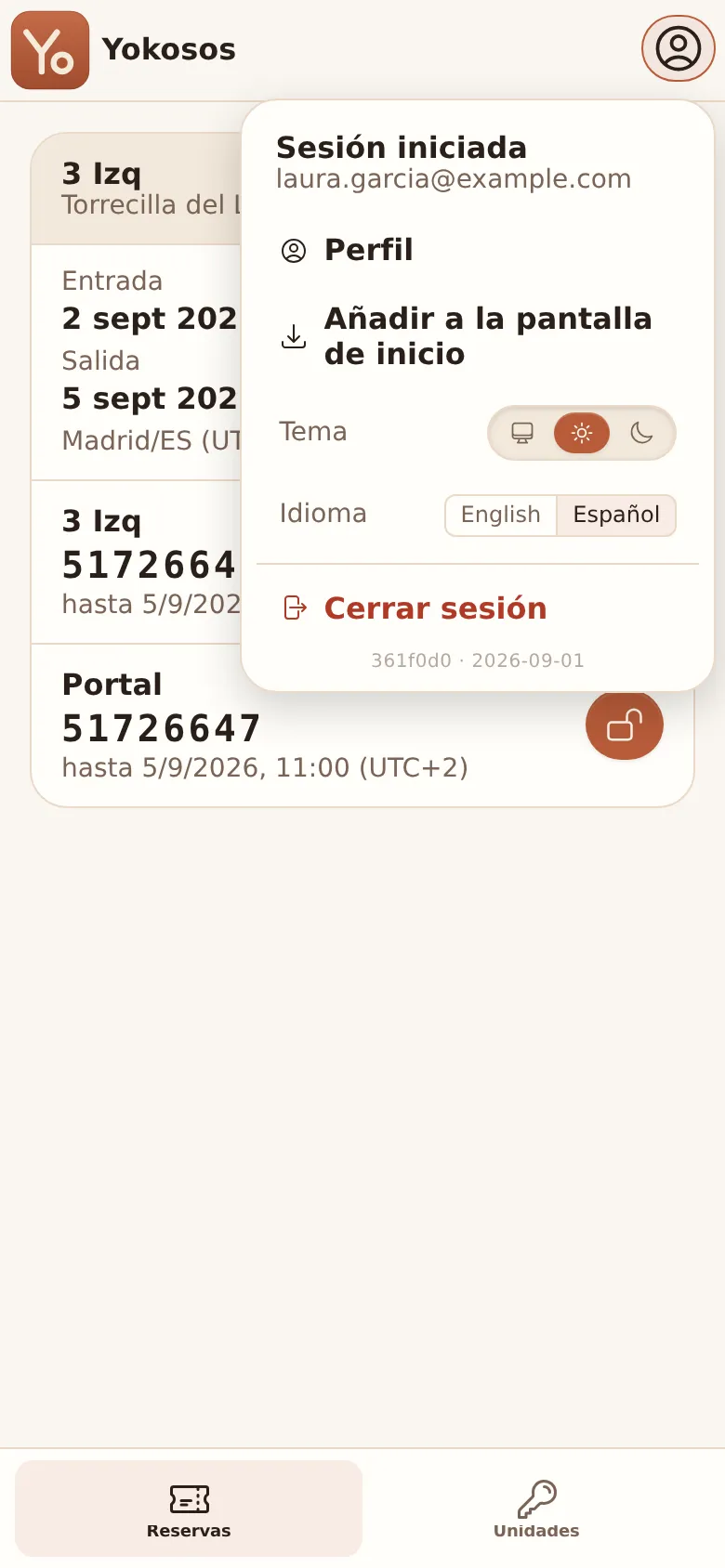
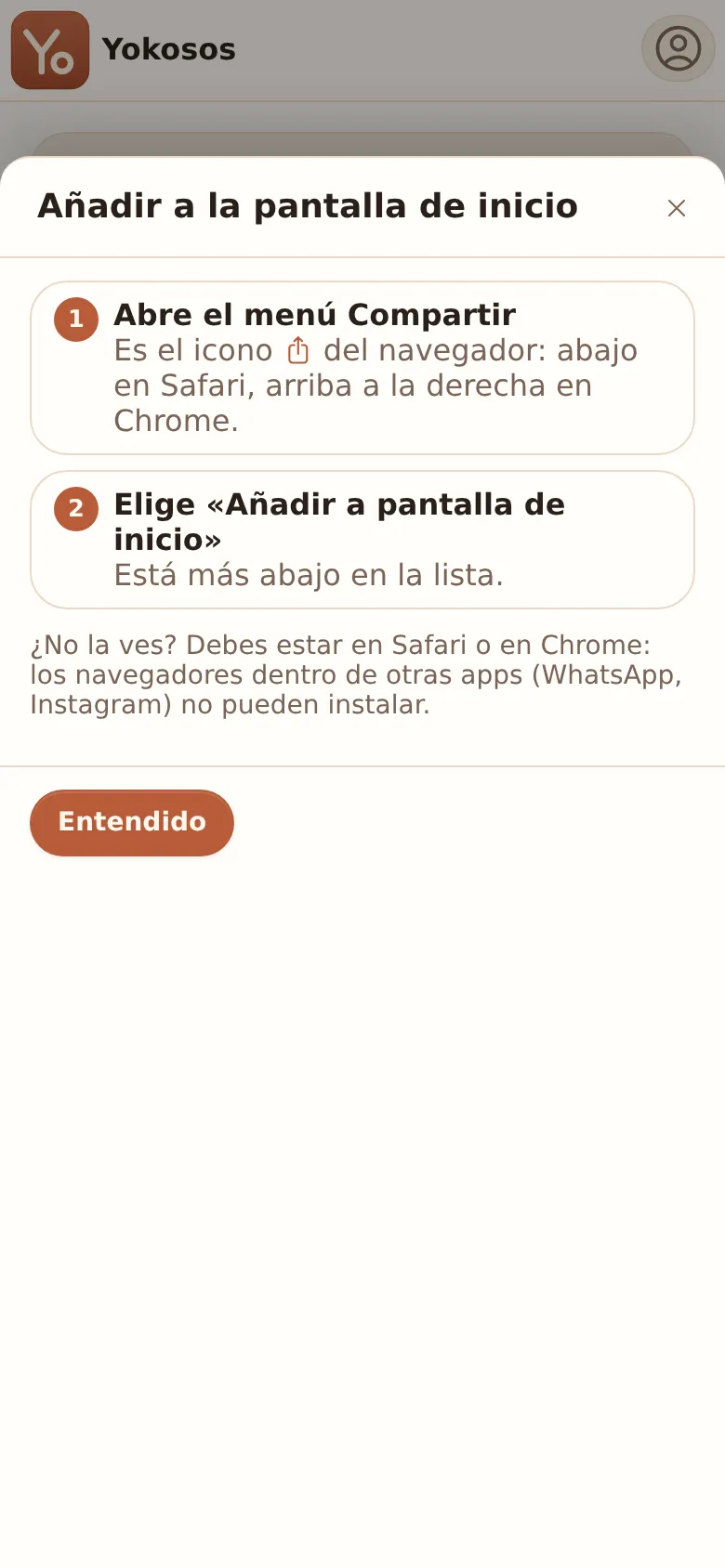
- Top-right menu → Add to Home Screen.
- On iPhone the system installs it, from the browser's Share button; the app tells you where that is, because it moves between Safari and Chrome. On Android and on a computer the browser installs it directly.
- Nothing about your access changes: same dates, same doors.
If you opened the link inside WhatsApp or Instagram you cannot install from there — those browsers cannot do it. Open the address in Safari or Chrome and try again.